
スクロールバー
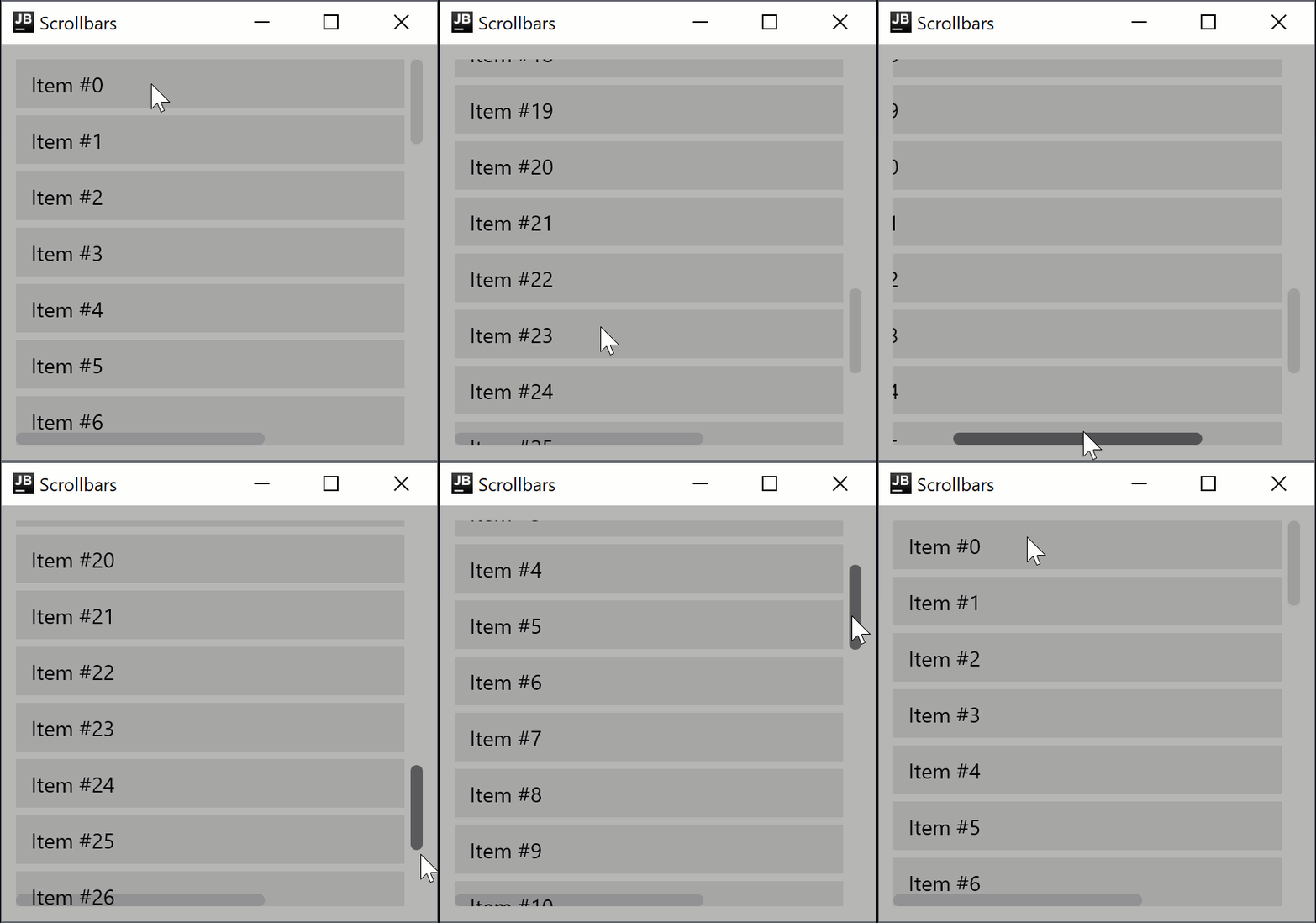
スクロール可能なコンポーネントにスクロールバーを適用できます。スクロールバーとスクロール可能なコンポーネントは、共通の状態 (state) を共有して互いに同期します。
提供されている各スニペットは、実行可能なデスクトップアプリです。試すには以下の手順を行ってください:
- Kotlin Multiplatform IDE プラグイン または オンラインウィザード を使用して、Compose Multiplatform プロジェクトを作成します。
- デスクトップのエントリポイントファイルを開きます。例:
desktopApp/src/main/kotlin/com/example/my_desktop_app/main.kt。- その内容を以下のスニペットで置き換えます。
スクロール修飾子
verticalScroll および horizontalScroll 修飾子 (modifiers) は、要素のコンテンツの境界 (bounds) がその最大サイズ制約よりも大きい場合に、ユーザーが要素をスクロールできるようにする最もシンプルな方法を提供します。 verticalScroll 修飾子を持つスクロール可能なコンポーネントには VerticalScrollbar コンポーザブルを、horizontalScroll 修飾子を持つスクロール可能なコンポーネントには HorizontalScrollbar コンポーザブルをアタッチできます。
import androidx.compose.foundation.HorizontalScrollbar
import androidx.compose.foundation.VerticalScrollbar
import androidx.compose.foundation.background
import androidx.compose.foundation.horizontalScroll
import androidx.compose.foundation.layout.Box
import androidx.compose.foundation.layout.Column
import androidx.compose.foundation.layout.Spacer
import androidx.compose.foundation.layout.fillMaxHeight
import androidx.compose.foundation.layout.fillMaxSize
import androidx.compose.foundation.layout.fillMaxWidth
import androidx.compose.foundation.layout.height
import androidx.compose.foundation.layout.padding
import androidx.compose.foundation.layout.width
import androidx.compose.foundation.rememberScrollState
import androidx.compose.foundation.rememberScrollbarAdapter
import androidx.compose.foundation.verticalScroll
import androidx.compose.material.Text
import androidx.compose.runtime.Composable
import androidx.compose.ui.Alignment
import androidx.compose.ui.Modifier
import androidx.compose.ui.graphics.Color
import androidx.compose.ui.unit.dp
import androidx.compose.ui.window.WindowState
import androidx.compose.ui.window.singleWindowApplication

fun main() = singleWindowApplication(
    title = "Scrollbars",
    state = WindowState(width = 300.dp, height = 310.dp)
) {
    Box(
        modifier = Modifier.fillMaxSize()
            .background(color = Color(180, 180, 180))
            .padding(10.dp)
    ) {
        val stateVertical = rememberScrollState(0)
        val stateHorizontal = rememberScrollState(0)

        Box(
            modifier = Modifier
                .fillMaxSize()
                .verticalScroll(stateVertical)
                .padding(end = 12.dp, bottom = 12.dp)
                .horizontalScroll(stateHorizontal)
        ) {
            Column {
                for (item in 0..30) {
                    TextBox("Item #$item")
                    if (item < 30) {
                        Spacer(modifier = Modifier.height(5.dp))
                    }
                }
            }
        }
        VerticalScrollbar(
            modifier = Modifier.align(Alignment.CenterEnd)
                .fillMaxHeight(),
            adapter = rememberScrollbarAdapter(stateVertical)
        )
        HorizontalScrollbar(
            modifier = Modifier.align(Alignment.BottomStart)
                .fillMaxWidth()
                .padding(end = 12.dp),
            adapter = rememberScrollbarAdapter(stateHorizontal)
        )
    }
}

@Composable
fun TextBox(text: String = "Item") {
    Box(
        modifier = Modifier.height(32.dp)
            .width(400.dp)
            .background(color = Color(0, 0, 0, 20))
            .padding(start = 10.dp),
        contentAlignment = Alignment.CenterStart
    ) {
        Text(text = text)
    }
}
スクロールバーは、バーをドラッグするか、マウスホイールまたはタッチパッドを使用して移動できます。マウスで水平スクロールバーを移動するには、ホイールをサイドクリック(横に倒す)するか、 キーを押し続けます。
Lazy スクロール可能コンポーネント
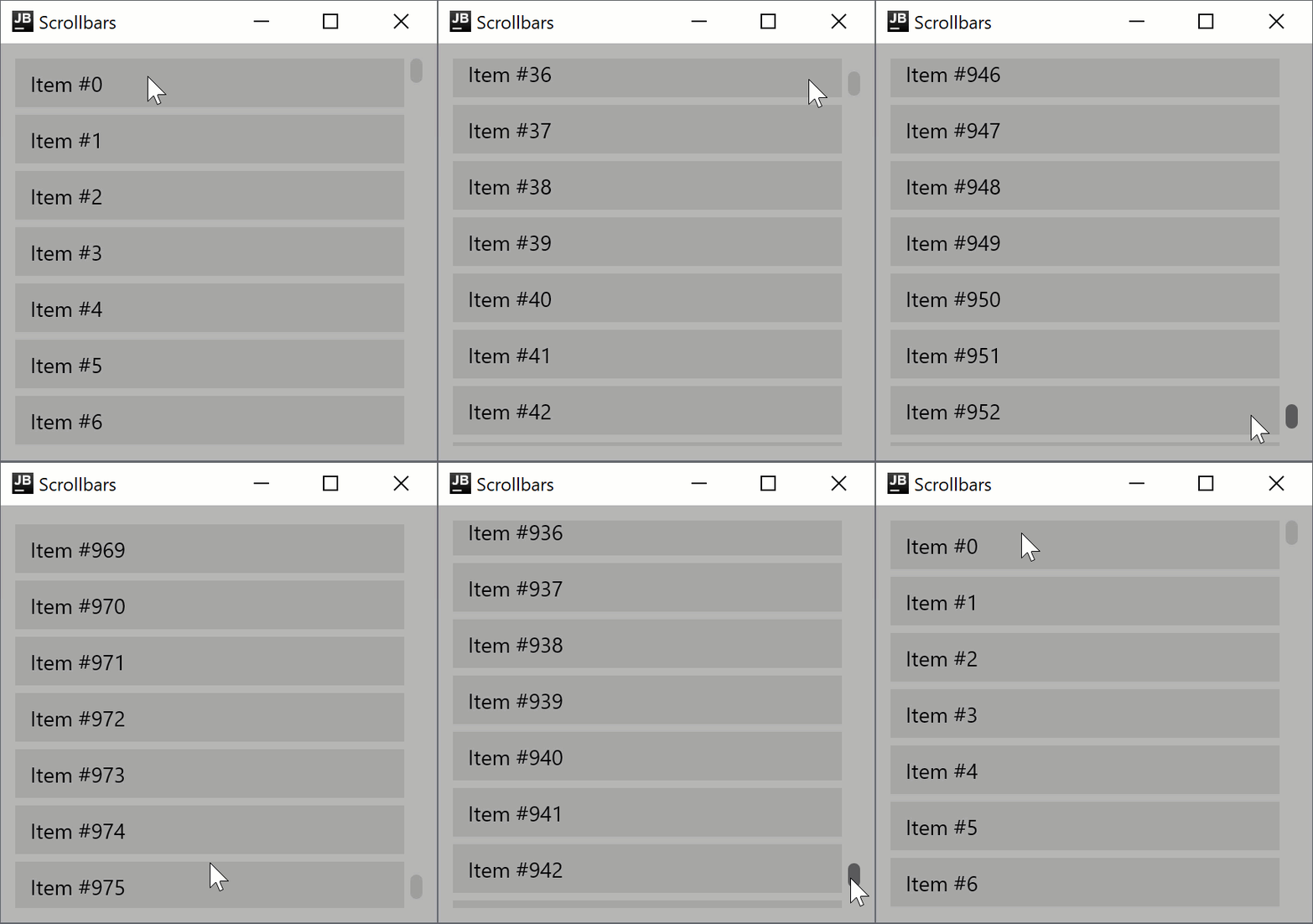
LazyColumn や LazyRow などの Lazy スクロール可能コンポーネントでもスクロールバーを使用できます。 Lazy コンポーネントは、リストに大量のアイテムが含まれることが予想される場合、必要に応じてのみアイテムを構成 (compose) するため、はるかに効率的です。
import androidx.compose.foundation.VerticalScrollbar
import androidx.compose.foundation.background
import androidx.compose.foundation.layout.Box
import androidx.compose.foundation.layout.Spacer
import androidx.compose.foundation.layout.fillMaxHeight
import androidx.compose.foundation.layout.fillMaxSize
import androidx.compose.foundation.layout.fillMaxWidth
import androidx.compose.foundation.layout.height
import androidx.compose.foundation.layout.padding
import androidx.compose.foundation.lazy.LazyColumn
import androidx.compose.foundation.lazy.rememberLazyListState
import androidx.compose.foundation.rememberScrollbarAdapter
import androidx.compose.material.Text
import androidx.compose.runtime.Composable
import androidx.compose.ui.Alignment
import androidx.compose.ui.Modifier
import androidx.compose.ui.graphics.Color
import androidx.compose.ui.unit.dp
import androidx.compose.ui.window.Window
import androidx.compose.ui.window.application
import androidx.compose.ui.window.rememberWindowState

fun main() = application {
    Window(
        onCloseRequest = ::exitApplication,
        title = "Scrollbars",
        state = rememberWindowState(width = 300.dp, height = 310.dp)
    ) {
        LazyScrollable()
    }
}

@Composable
fun LazyScrollable() {
    Box(
        modifier = Modifier.fillMaxSize()
            .background(color = Color(180, 180, 180))
            .padding(10.dp)
    ) {
        val state = rememberLazyListState()

        LazyColumn(Modifier.fillMaxSize().padding(end = 12.dp), state) {
            items(1000) { x ->
                TextBox("Item #$x")
                Spacer(modifier = Modifier.height(5.dp))
            }
        }
        VerticalScrollbar(
            modifier = Modifier.align(Alignment.CenterEnd).fillMaxHeight(),
            adapter = rememberScrollbarAdapter(
                scrollState = state
            )
        )
    }
}

@Composable
fun TextBox(text: String = "Item") {
    Box(
        modifier = Modifier.height(32.dp)
            .fillMaxWidth()
            .background(color = Color(0, 0, 0, 20))
            .padding(start = 10.dp),
        contentAlignment = Alignment.CenterStart
    ) {
        Text(text = text)
    }
}
既知の制限事項
現在、タッチスクリーン、タッチパッド、およびトラックパッドを使用したスクロールはマウスイベントとして処理されるため、グリッチ(不自然な動作)やピンチズーム (pinch-to-zoom) の欠如などの制限が生じる可能性があります。私たちは入力とジェスチャーの処理を継続的に改善しており、これらの入力デバイスに対するネイティブサポートの導入を計画しています。
次のステップ
その他のデスクトップコンポーネントに関するチュートリアルをご覧ください。