
頂層視窗管理
Compose Multiplatform for desktop 提供了多種管理視窗的功能。你可以將視窗隱藏到系統匣、使其可拖曳、自適應大小、變更位置等等。
undefined
開啟與關閉視窗
你可以使用 Window() 函式來建立一個常規視窗。要將其放入可組合作用域中,請在 application 入口點中使用 Window():
import androidx.compose.ui.window.Window
import androidx.compose.ui.window.application

fun main() = application {
    Window(onCloseRequest = ::exitApplication) {
        // 視窗內容
    }
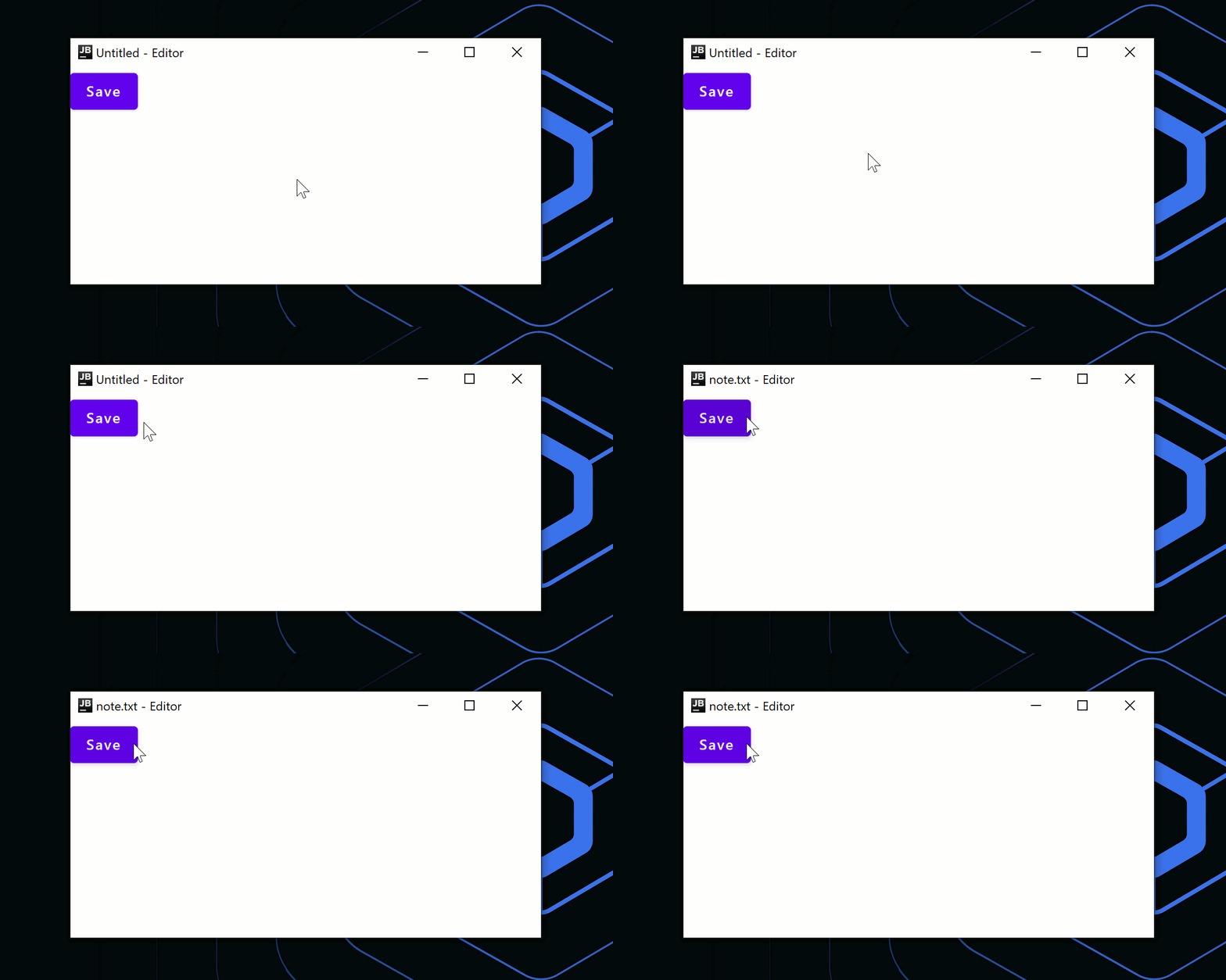
}作為一個可組合函式,Window() 允許你以宣告式的方式變更其屬性。例如,你可以開啟一個具有特定標題的視窗,稍後再變更該標題:
import androidx.compose.material.Button
import androidx.compose.material.Text
import androidx.compose.runtime.getValue
import androidx.compose.runtime.mutableStateOf
import androidx.compose.runtime.remember
import androidx.compose.runtime.setValue
import androidx.compose.ui.window.Window
import androidx.compose.ui.window.application

fun main() = application {
    var fileName by remember { mutableStateOf("Untitled") }

    Window(onCloseRequest = ::exitApplication, title = "$fileName - Editor") {
        Button(onClick = { fileName = "note.txt" }) {
            Text("Save")
        }
    }
}
新增條件
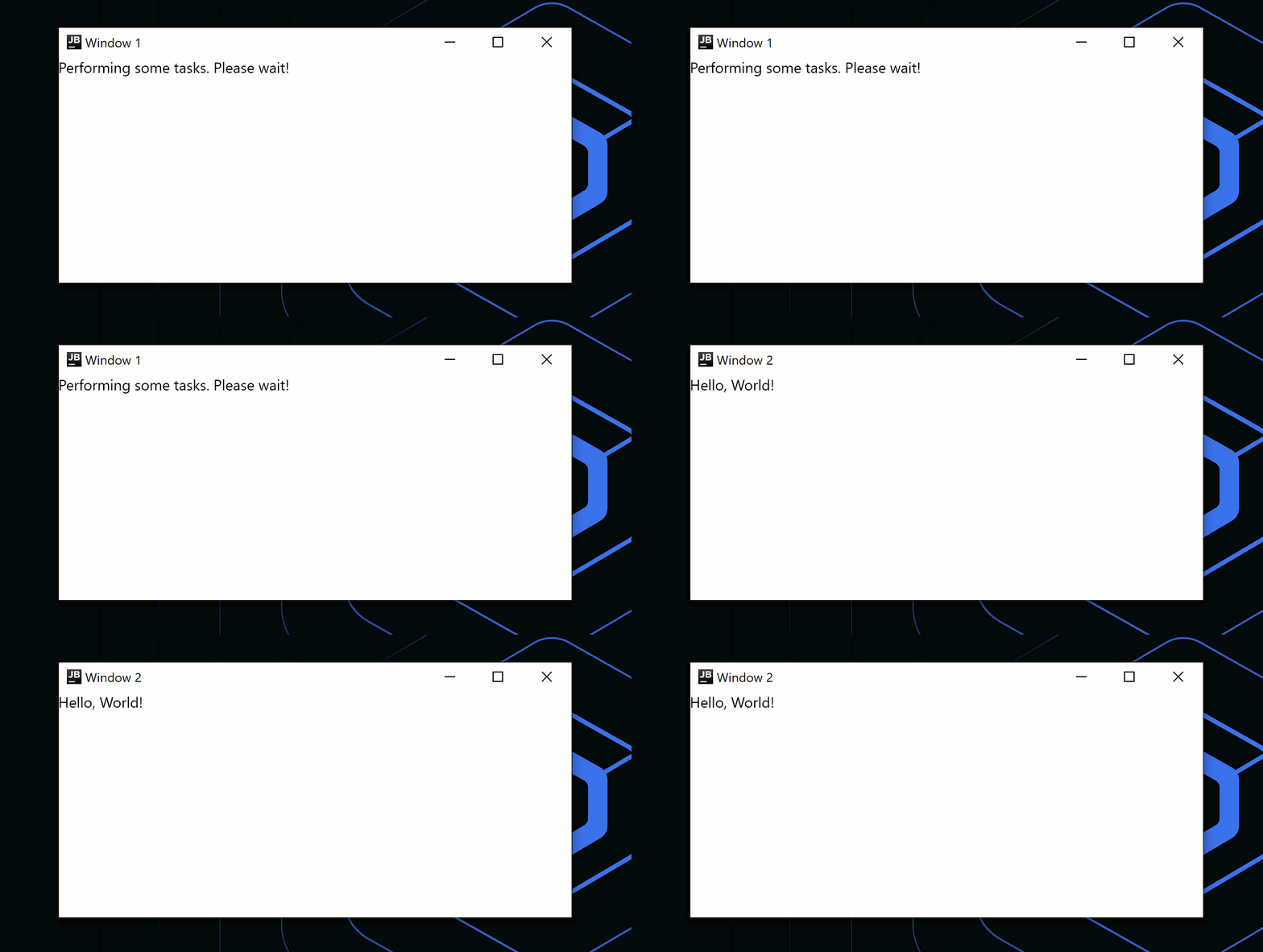
你也可以使用簡單的 if 條件來開啟與關閉視窗。在下方的程式碼範例中,應用程式視窗會在完成工作後自動關閉:
import androidx.compose.material.Text
import androidx.compose.runtime.LaunchedEffect
import androidx.compose.runtime.getValue
import androidx.compose.runtime.mutableStateOf
import androidx.compose.runtime.remember
import androidx.compose.runtime.setValue
import androidx.compose.ui.window.Window
import androidx.compose.ui.window.application
import kotlinx.coroutines.delay

fun main() = application {
    var isPerformingTask by remember { mutableStateOf(true) }

    LaunchedEffect(Unit) {
        // 執行一些繁重的工作
        delay(2000)
        isPerformingTask = false
    }
    if (isPerformingTask) {
        Window(
            onCloseRequest = ::exitApplication,
            title = "Window 1"
        )
        {
            Text("Performing some tasks. Please wait!")
        }
    } else {
        Window(
            onCloseRequest = ::exitApplication,
            title = "Window 2"
        ) {
            Text("Hello, World!")
        }
    }
}
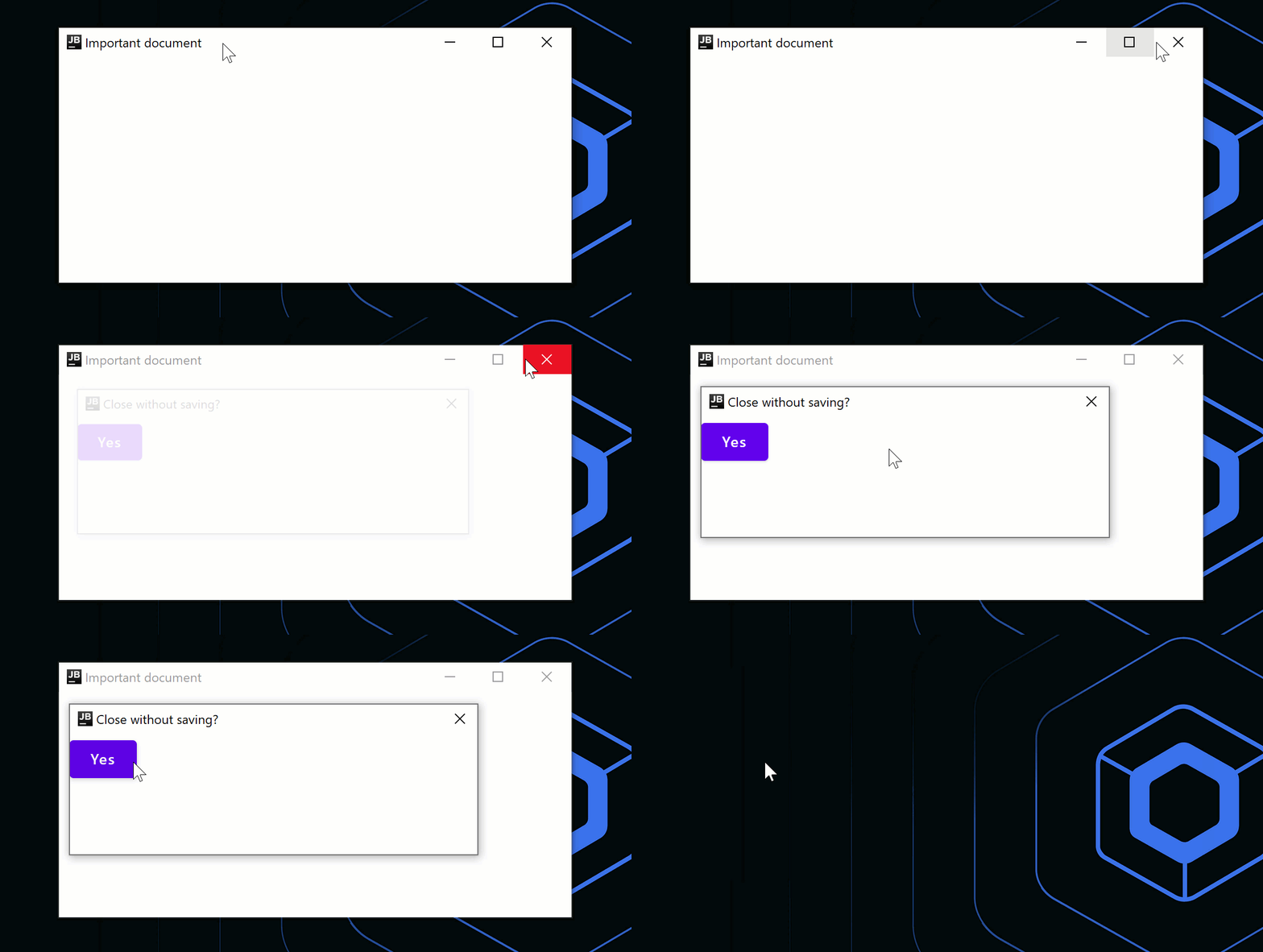
如果你想在應用程式結束時使用自訂邏輯(例如顯示對話方塊),可以使用 onCloseRequest 回呼來覆寫關閉操作。 在下方的程式碼範例中,我們不使用命令式方法 (window.close()),而是使用宣告式方法,並根據狀態變更 (isOpen = false) 來關閉視窗。
import androidx.compose.material.Button
import androidx.compose.material.Text
import androidx.compose.runtime.getValue
import androidx.compose.runtime.mutableStateOf
import androidx.compose.runtime.remember
import androidx.compose.runtime.setValue
import androidx.compose.ui.window.DialogWindow
import androidx.compose.ui.window.Window
import androidx.compose.ui.window.application

fun main() = application {
    var isOpen by remember { mutableStateOf(true) }
    var isAskingToClose by remember { mutableStateOf(false) }

    if (isOpen) {
        Window(
            onCloseRequest = { isAskingToClose = true },
            title = "Important document"
        ) {
            if (isAskingToClose) {
                DialogWindow(
                    onCloseRequest = { isAskingToClose = false },
                    title = "Close without saving?"
                ) {
                    Button(
                        onClick = { isOpen = false }
                    ) {
                        Text("Yes")
                    }
                }
            }
        }
    }
}
"}
處理多個視窗
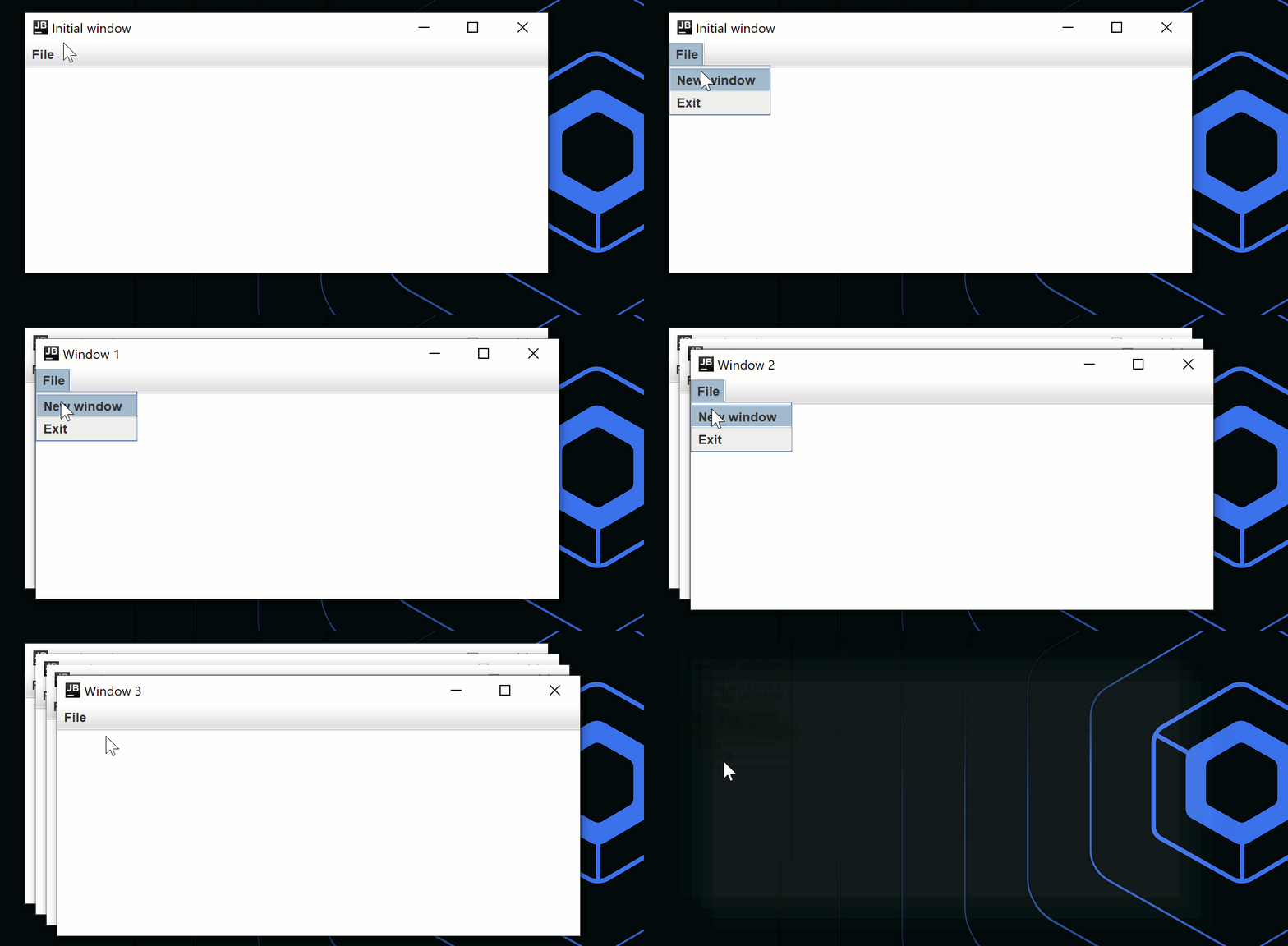
如果應用程式有多個視窗,你可以為應用程式狀態建立一個單獨的類別,並根據 mutableStateListOf 的變更來開啟或關閉視窗:
import androidx.compose.runtime.Composable
import androidx.compose.runtime.key
import androidx.compose.runtime.mutableStateListOf
import androidx.compose.runtime.remember
import androidx.compose.ui.window.MenuBar
import androidx.compose.ui.window.Window
import androidx.compose.ui.window.application

fun main() = application {
    val applicationState = remember { MyApplicationState() }

    for (window in applicationState.windows) {
        key(window) {
            MyWindow(window)
        }
    }
}

@Composable
private fun MyWindow(
    state: MyWindowState
) = Window(onCloseRequest = state::close, title = state.title) {
    MenuBar {
        Menu("File") {
            Item("New window", onClick = state.openNewWindow)
            Item("Exit", onClick = state.exit)
        }
    }
}

private class MyApplicationState {
    val windows = mutableStateListOf<MyWindowState>()

    init {
        windows += MyWindowState("Initial window")
    }

    fun openNewWindow() {
        windows += MyWindowState("Window ${windows.size}")
    }

    fun exit() {
        windows.clear()
    }

    private fun MyWindowState(
        title: String
    ) = MyWindowState(
        title,
        openNewWindow = ::openNewWindow,
        exit = ::exit,
        windows::remove
    )
}

private class MyWindowState(
    val title: String,
    val openNewWindow: () -> Unit,
    val exit: () -> Unit,
    private val close: (MyWindowState) -> Unit
) {
    fun close() = close(this)
}
如需更複雜的範例,請參閱 Code Viewer 範例。
將視窗最小化到系統匣
若要隱藏視窗而不是關閉它,你可以變更 windowState.isVisible 狀態:
import androidx.compose.material.Text
import androidx.compose.runtime.LaunchedEffect
import androidx.compose.runtime.getValue
import androidx.compose.runtime.mutableStateOf
import androidx.compose.runtime.remember
import androidx.compose.runtime.setValue
import androidx.compose.ui.geometry.Size
import androidx.compose.ui.graphics.Color
import androidx.compose.ui.graphics.drawscope.DrawScope
import androidx.compose.ui.graphics.painter.Painter
import androidx.compose.ui.window.Tray
import androidx.compose.ui.window.Window
import androidx.compose.ui.window.application
import kotlinx.coroutines.delay

fun main() = application {
    var isVisible by remember { mutableStateOf(true) }

    Window(
        onCloseRequest = { isVisible = false },
        visible = isVisible,
        title = "Counter",
    ) {
        var counter by remember { mutableStateOf(0) }
        LaunchedEffect(Unit) {
            while (true) {
                counter++
                delay(1000)
            }
        }
        Text(counter.toString())
    }

    if (!isVisible) {
        Tray(
            TrayIcon,
            tooltip = "Counter",
            onAction = { isVisible = true },
            menu = {
                Item("Exit", onClick = ::exitApplication)
            },
        )
    }
}

object TrayIcon : Painter() {
    override val intrinsicSize = Size(256f, 256f)

    override fun DrawScope.onDraw() {
        drawOval(Color(0xFFFFA500))
    }
}
,"}

singleWindowApplication() 函式
你可以透過呼叫 singleWindowApplication() 函式來建立單一視窗應用程式。
singleWindowApplication() 函式更易於使用,但具有以下限制:
- 應用程式只能有一個視窗。
- 你無法新增自訂關閉邏輯。
- 你無法在執行時變更視窗的屬性。
import androidx.compose.ui.window.singleWindowApplication

fun main() = singleWindowApplication {
    // 視窗內容
}
作為替代方案,你可以在 application 入口點中使用 Window() 可組合項。
自適應視窗大小
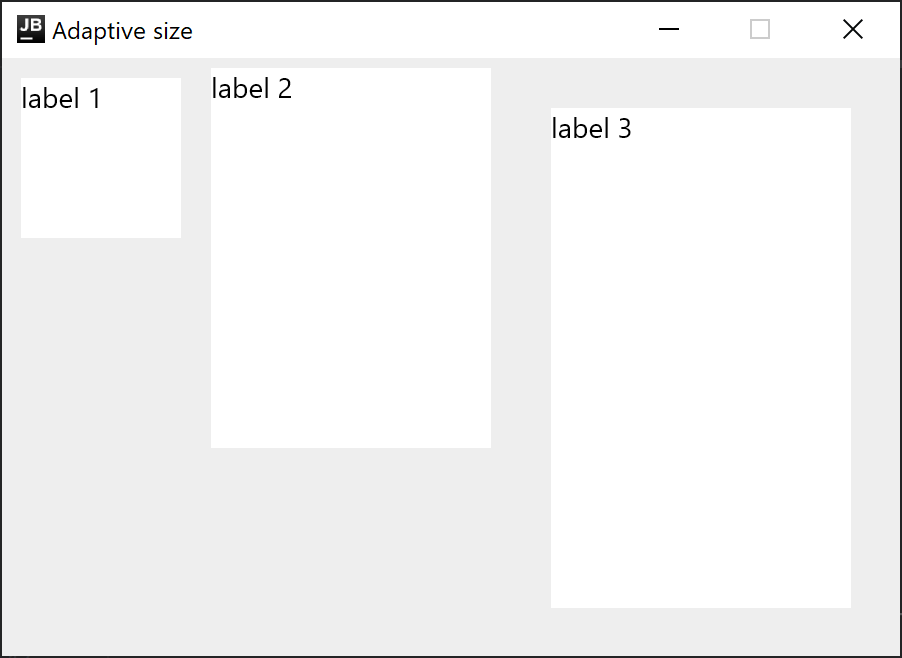
當你不知道預期內容的大小,且無法預先指定最佳視窗維度時, 你可以將 WindowSize 的其中一個或兩個維度設定為 Dp.Unspecified。Compose Multiplatform for desktop 會自動調整視窗的初始大小以符合內容:
import androidx.compose.foundation.background
import androidx.compose.foundation.layout.Column
import androidx.compose.foundation.layout.Row
import androidx.compose.foundation.layout.padding
import androidx.compose.foundation.layout.size
import androidx.compose.material.Text
import androidx.compose.ui.Modifier
import androidx.compose.ui.graphics.Color
import androidx.compose.ui.unit.Dp
import androidx.compose.ui.unit.dp
import androidx.compose.ui.window.Window
import androidx.compose.ui.window.application
import androidx.compose.ui.window.rememberWindowState

fun main() = application {
    Window(
        onCloseRequest = ::exitApplication,
        state = rememberWindowState(width = Dp.Unspecified, height = Dp.Unspecified),
        title = "Adaptive size",
        resizable = false
    ) {
        Column(Modifier.background(Color(0xFFEEEEEE))) {
            Row {
                Text("label 1", Modifier.size(100.dp, 100.dp).padding(10.dp).background(Color.White))
                Text("label 2", Modifier.size(150.dp, 200.dp).padding(5.dp).background(Color.White))
                Text("label 3", Modifier.size(200.dp, 300.dp).padding(25.dp).background(Color.White))
            }
        }
    }
}
變更視窗狀態
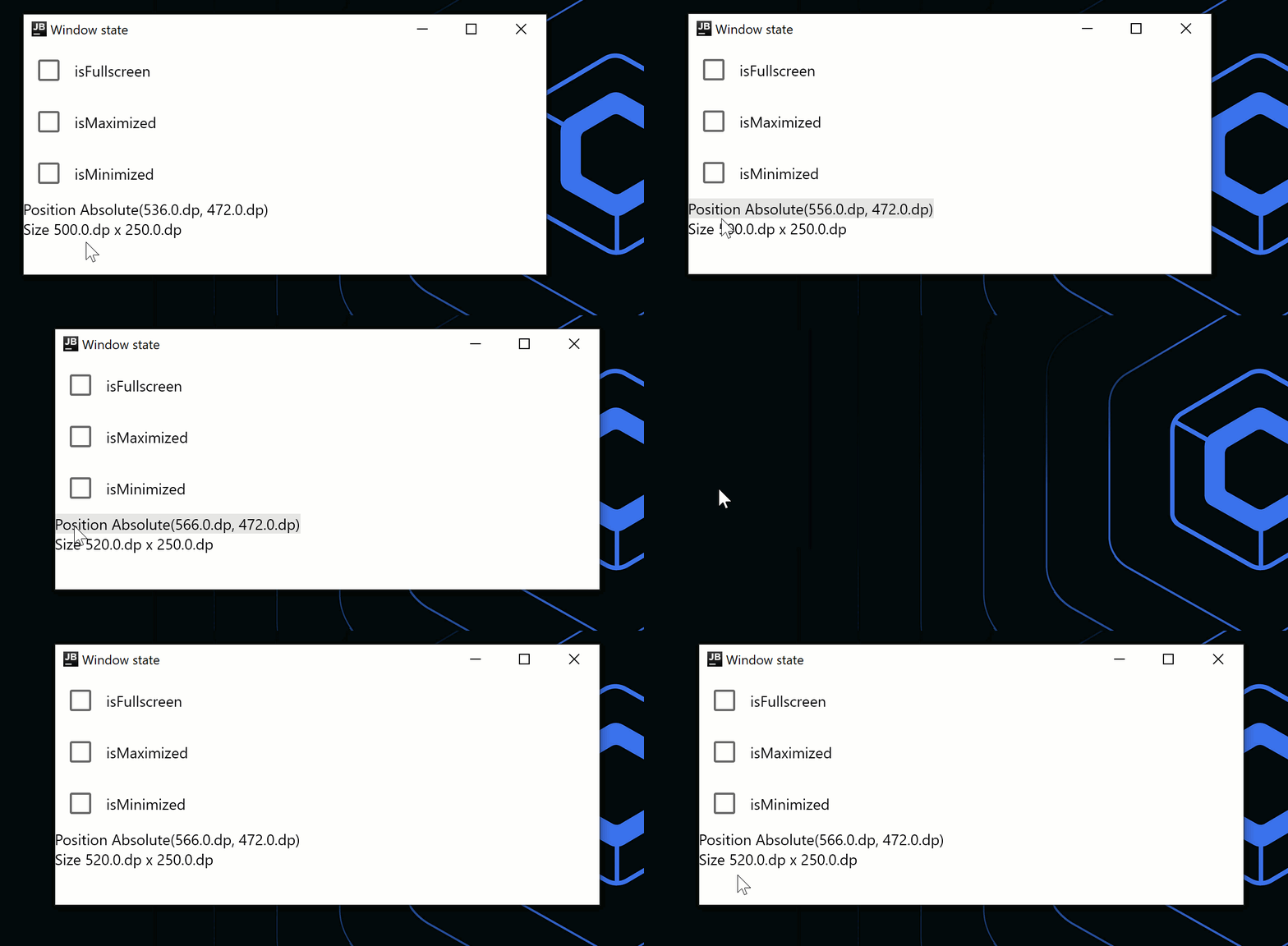
WindowState 是一個單獨的 API 類別,用於視窗配置、當前位置和大小。配置屬性允許你指定視窗在螢幕上的放置方式: 浮動、最大化/最小化或全螢幕。 狀態的任何變更都會觸發自動重組。要變更視窗狀態,請使用回呼或在可組合項中觀察它:
import androidx.compose.foundation.clickable
import androidx.compose.foundation.layout.Column
import androidx.compose.foundation.layout.Row
import androidx.compose.material.Checkbox
import androidx.compose.material.Text
import androidx.compose.ui.Alignment
import androidx.compose.ui.Modifier
import androidx.compose.ui.unit.dp
import androidx.compose.ui.window.Window
import androidx.compose.ui.window.WindowPlacement
import androidx.compose.ui.window.WindowPosition
import androidx.compose.ui.window.application
import androidx.compose.ui.window.rememberWindowState

fun main() = application {
    val state = rememberWindowState(placement = WindowPlacement.Maximized)

    Window(onCloseRequest = ::exitApplication, state, title = "Window state") {
        Column {
            Row(verticalAlignment = Alignment.CenterVertically) {
                Checkbox(
                    state.placement == WindowPlacement.Fullscreen,
                    {
                        state.placement = if (it) {
                            WindowPlacement.Fullscreen
                        } else {
                            WindowPlacement.Floating
                        }
                    }
                )
                Text("isFullscreen")
            }

            Row(verticalAlignment = Alignment.CenterVertically) {
                Checkbox(
                    state.placement == WindowPlacement.Maximized,
                    {
                        state.placement = if (it) {
                            WindowPlacement.Maximized
                        } else {
                            WindowPlacement.Floating
                        }
                    }
                )
                Text("isMaximized")
            }

            Row(verticalAlignment = Alignment.CenterVertically) {
                Checkbox(state.isMinimized, { state.isMinimized = !state.isMinimized })
                Text("isMinimized")
            }

            Text(
                "Position ${state.position}",
                Modifier.clickable {
                    val position = state.position
                    if (position is WindowPosition.Absolute) {
                        state.position = position.copy(x = state.position.x + 10.dp)
                    }
                }
            )

            Text(
                "Size ${state.size}",
                Modifier.clickable {
                    state.size = state.size.copy(width = state.size.width + 10.dp)
                }
            )
        }
    }
}
監聽視窗狀態
如果你需要對狀態變更做出反應,並將值傳送到另一個非可組合應用程式層級(例如將其寫入資料庫),可以使用 snapshotFlow() 函式。 此函式會擷取可組合項狀態的當前值。
import androidx.compose.runtime.LaunchedEffect
import androidx.compose.runtime.snapshotFlow
import androidx.compose.ui.unit.DpSize
import androidx.compose.ui.window.Window
import androidx.compose.ui.window.WindowPosition
import androidx.compose.ui.window.application
import androidx.compose.ui.window.rememberWindowState
import kotlinx.coroutines.flow.filter
import kotlinx.coroutines.flow.launchIn
import kotlinx.coroutines.flow.onEach

fun main() = application {
    val state = rememberWindowState()

    Window(onCloseRequest = ::exitApplication, state) {
        LaunchedEffect(state) {
            snapshotFlow { state.size }
                .onEach(::onWindowResize)
                .launchIn(this)

            snapshotFlow { state.position }
                .filter { it.isSpecified }
                .onEach(::onWindowRelocate)
                .launchIn(this)
        }
    }
}

private fun onWindowResize(size: DpSize) {
    println("onWindowResize $size")
}

private fun onWindowRelocate(position: WindowPosition) {
    println("onWindowRelocate $position")
}
.onEach(::onWindowResize)"}
對話方塊
你可以使用 Window() 可組合項來建立常規視窗,並使用 DialogWindow() 可組合項來建立強制回應視窗,強制回應視窗會鎖定其父視窗,直到使用者關閉該對話方塊。
下方的程式碼範例示範了如何使用這些可組合項來結合常規視窗與強制回應視窗:
import androidx.compose.material.Button
import androidx.compose.material.Text
import androidx.compose.runtime.getValue
import androidx.compose.runtime.mutableStateOf
import androidx.compose.runtime.remember
import androidx.compose.runtime.setValue
import androidx.compose.ui.Alignment
import androidx.compose.ui.window.DialogWindow
import androidx.compose.ui.window.Window
import androidx.compose.ui.window.WindowPosition
import androidx.compose.ui.window.application
import androidx.compose.ui.window.rememberDialogState

fun main() = application {
    Window(
        onCloseRequest = ::exitApplication,
    ) {
        var isDialogOpen by remember { mutableStateOf(false) }

        Button(onClick = { isDialogOpen = true }) {
            Text(text = "Open dialog")
        }

        if (isDialogOpen) {
            DialogWindow(
                onCloseRequest = { isDialogOpen = false },
                state = rememberDialogState(position = WindowPosition(Alignment.Center))
            ) {
                // 視窗內容
            }
        }
    }
}
,"}
可拖曳的視窗區域
若要為無裝飾視窗新增自訂的可拖曳標題列,或使整個視窗可拖曳,你可以使用 WindowDraggableArea() 可組合項:
import androidx.compose.foundation.background
import androidx.compose.foundation.layout.Box
import androidx.compose.foundation.layout.fillMaxWidth
import androidx.compose.foundation.layout.height
import androidx.compose.foundation.window.WindowDraggableArea
import androidx.compose.ui.Modifier
import androidx.compose.ui.graphics.Color
import androidx.compose.ui.unit.dp
import androidx.compose.ui.window.Window
import androidx.compose.ui.window.application

fun main() = application {
    Window(onCloseRequest = ::exitApplication, undecorated = true) {
        WindowDraggableArea {
            Box(Modifier.fillMaxWidth().height(48.dp).background(Color.DarkGray))
        }
    }
}
"}
WindowDraggableArea() 僅能在 singleWindowApplication()、Window() 和 DialogWindow() 可組合項中使用。若要在其他可組合函式中呼叫它,請使用 WindowScope 作為接收者作用域:
import androidx.compose.foundation.background
import androidx.compose.foundation.layout.Box
import androidx.compose.foundation.layout.fillMaxWidth
import androidx.compose.foundation.layout.height
import androidx.compose.foundation.window.WindowDraggableArea
import androidx.compose.runtime.Composable
import androidx.compose.ui.Modifier
import androidx.compose.ui.graphics.Color
import androidx.compose.ui.unit.dp
import androidx.compose.ui.window.Window
import androidx.compose.ui.window.WindowScope
import androidx.compose.ui.window.application

fun main() = application {
    Window(onCloseRequest = ::exitApplication, undecorated = true) {
        AppWindowTitleBar()
    }
}

@Composable
private fun WindowScope.AppWindowTitleBar() = WindowDraggableArea {
    Box(Modifier.fillMaxWidth().height(48.dp).background(Color.DarkGray))
}
透明視窗與其他自訂功能
若要建立透明視窗,請將兩個參數傳遞給 Window() 函式:transparent=true 和 undecorated=true。 視窗必須是無裝飾的 (undecorated),因為透明視窗無法使用裝飾。
下方的程式碼範例示範了如何結合多個可組合項來建立具有圓角的透明視窗:
import androidx.compose.foundation.layout.fillMaxSize
import androidx.compose.foundation.layout.padding
import androidx.compose.foundation.shape.RoundedCornerShape
import androidx.compose.material.Surface
import androidx.compose.runtime.mutableStateOf
import androidx.compose.runtime.remember
import androidx.compose.ui.Modifier
import androidx.compose.ui.draw.shadow
import androidx.compose.ui.graphics.Color
import androidx.compose.ui.unit.dp
import androidx.compose.ui.window.Window
import androidx.compose.ui.window.application
import androidx.compose.material.Text
import androidx.compose.runtime.*

fun main() = application {
    var isOpen by remember { mutableStateOf(true) }
    if (isOpen) {
        Window(
            onCloseRequest = { isOpen = false },
            title = "Transparent Window Example",
            transparent = true,
            // 透明視窗必須是無裝飾的
            undecorated = true,
        ) {
            Surface(
                modifier = Modifier.fillMaxSize().padding(5.dp).shadow(3.dp, RoundedCornerShape(20.dp)),
                color = Color.Transparent,
                // 具有圓角的視窗
                shape = RoundedCornerShape(20.dp)
            ) {
                Text("Hello World!", color = Color.White)
            }
        }
    }
}
Swing 互通性
Compose Multiplatform for desktop 在底層使用 Swing,因此你可以直接使用 Swing 建立視窗:
import androidx.compose.ui.awt.ComposeWindow
import java.awt.Dimension
import javax.swing.JFrame
import javax.swing.SwingUtilities

fun main() = SwingUtilities.invokeLater {
    ComposeWindow().apply {
        size = Dimension(300, 300)
        defaultCloseOperation = JFrame.DISPOSE_ON_CLOSE
        setContent {
            // 視窗內容
        }
        isVisible = true
    }
}
你也可以使用 Window() 可組合項的作用域。在下方的程式碼範例中,window 是在 Window() 內部建立的 ComposeWindow:
import androidx.compose.runtime.LaunchedEffect
import androidx.compose.ui.window.singleWindowApplication
import java.awt.datatransfer.DataFlavor
import java.awt.dnd.DnDConstants
import java.awt.dnd.DropTarget
import java.awt.dnd.DropTargetAdapter
import java.awt.dnd.DropTargetDropEvent

fun main() = singleWindowApplication {
    LaunchedEffect(Unit) {
        window.dropTarget = DropTarget().apply {
            addDropTargetListener(object : DropTargetAdapter() {
                override fun drop(event: DropTargetDropEvent) {
                    event.acceptDrop(DnDConstants.ACTION_COPY)
                    val fileName = event.transferable.getTransferData(DataFlavor.javaFileListFlavor)
                    println(fileName)
                }
            })
        }
    }
}
如果你需要使用在 Swing 中實作的對話方塊,可以將其封裝進可組合函式中:
import androidx.compose.runtime.Composable
import androidx.compose.runtime.getValue
import androidx.compose.runtime.mutableStateOf
import androidx.compose.runtime.remember
import androidx.compose.runtime.setValue
import androidx.compose.ui.window.AwtWindow
import androidx.compose.ui.window.application
import java.awt.FileDialog
import java.awt.Frame

fun main() = application {
    var isOpen by remember { mutableStateOf(true) }

    if (isOpen) {
        FileDialog(
            onCloseRequest = {
                isOpen = false
                println("Result $it")
            }
        )
    }
}

@Composable
private fun FileDialog(
    parent: Frame? = null,
    onCloseRequest: (result: String?) -> Unit
) = AwtWindow(
    create = {
        object : FileDialog(parent, "Choose a file", LOAD) {
            override fun setVisible(value: Boolean) {
                super.setVisible(value)
                if (value) {
                    onCloseRequest(file)
                }
            }
        }
    },
    dispose = FileDialog::dispose
)
下一步
探索關於 其他桌面組件 的教學。