
與 SwiftUI 架構整合
Compose Multiplatform 與 SwiftUI 架構具有互通性。 您可以將 Compose Multiplatform 嵌入 SwiftUI 應用程式中,也可以將原生 SwiftUI 組件嵌入 Compose Multiplatform UI 中。本頁面提供在 SwiftUI 中使用 Compose Multiplatform 以及在 Compose Multiplatform 應用程式中嵌入 SwiftUI 的範例。
若要了解 UIKit 互通性,請參閱 與 UIKit 架構整合 一文。
在 SwiftUI 應用程式中使用 Compose Multiplatform
要在 SwiftUI 應用程式中使用 Compose Multiplatform,請建立一個 Kotlin 函式 MainViewController(),該函式會從 UIKit 回傳 UIViewController,並包含 Compose Multiplatform 程式碼:
fun MainViewController(): UIViewController =
    ComposeUIViewController {
        Box(Modifier.fillMaxSize(), contentAlignment = Alignment.Center) {
            Text("This is Compose code", fontSize = 20.sp)
        }
    }
ComposeUIViewController() 是一個 Compose Multiplatform 程式庫函式,它接受一個 composable 函式作為 content 引數。以這種方式傳遞的函式可以呼叫其他 composable 函式,例如 Text()。
Compose Multiplatform 渲染需要明確啟用高重新整理率:請將
CADisableMinimumFrameDurationOnPhone鍵新增到應用程式的Info.plist檔案中。若沒有它,應用程式將在執行時崩潰。
接著,您需要一個在 SwiftUI 中表示 Compose Multiplatform 的結構。建立以下將 UIViewController 執行個體轉換為 SwiftUI 檢視的結構:
struct ComposeViewController: UIViewControllerRepresentable {
    func makeUIViewController(context: Context) -> UIViewController {
        return Main_iosKt.MainViewController()
    }

    func updateUIViewController(_ uiViewController: UIViewController, context: Context) {
    }
}
現在您可以在其他 SwiftUI 程式碼中使用 ComposeView 結構。
Main_iosKt.MainViewController 是一個產生的名稱。您可以透過 與 Swift/Objective-C 的互通性 頁面進一步了解如何從 Swift 存取 Kotlin 程式碼。
最終,您的應用程式看起來應該像這樣:
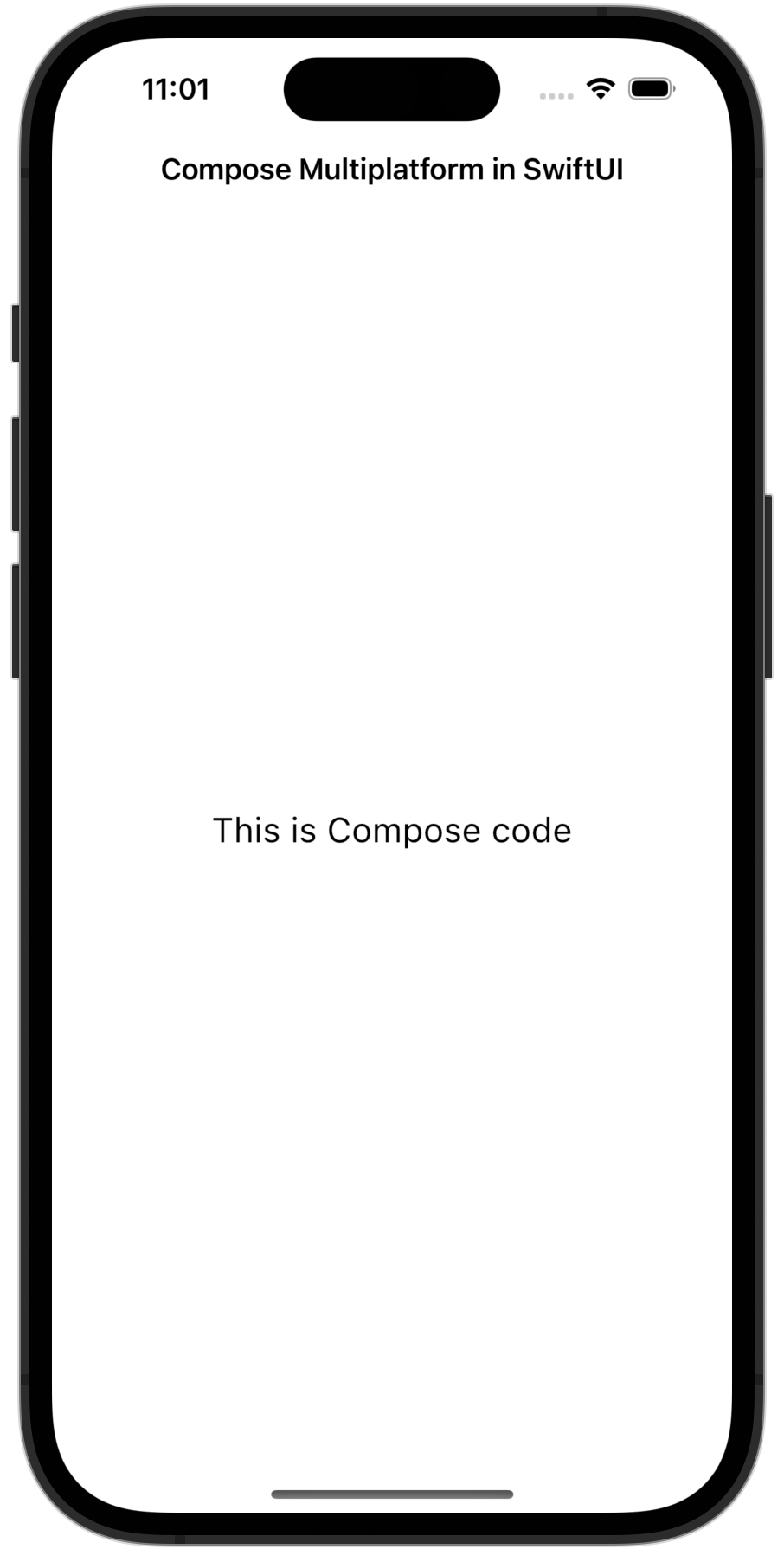
您可以在任何 SwiftUI 檢視階層結構中使用此 ComposeView,並從 SwiftUI 程式碼中控制其大小。
如果您想將 Compose Multiplatform 嵌入現有的應用程式中,請在任何使用 SwiftUI 的地方使用 ComposeView 結構。 範例請參閱我們的 範例專案。
在 Compose Multiplatform 中使用 SwiftUI
要在 Compose Multiplatform 中使用 SwiftUI,請將您的 Swift 程式碼新增至中介的 UIViewController。 目前,您無法直接在 Kotlin 中編寫 SwiftUI 結構。相反地,您必須在 Swift 中編寫它們,並將其傳遞給 Kotlin 函式。
首先,為您的進入點函式新增一個引數以建立 ComposeUIViewController 組件:
@OptIn(ExperimentalForeignApi::class)
fun ComposeEntryPointWithUIViewController(
    createUIViewController: () -> UIViewController
): UIViewController =
    ComposeUIViewController {
        Column(
            Modifier
                .fillMaxSize()
                .windowInsetsPadding(WindowInsets.systemBars),
            horizontalAlignment = Alignment.CenterHorizontally
        ) {
            Text("How to use SwiftUI inside Compose Multiplatform")
            UIKitViewController(
                factory = createUIViewController,
                modifier = Modifier.size(300.dp).border(2.dp, Color.Blue),
            )
        }
    }
在您的 Swift 程式碼中,將 createUIViewController 傳遞給您的進入點函式。您可以使用 UIHostingController 執行個體來包裝 SwiftUI 檢視:
Main_iosKt.ComposeEntryPointWithUIViewController(createUIViewController: { () -> UIViewController in
    let swiftUIView = VStack {
        Text("SwiftUI in Compose Multiplatform")
    }
    return UIHostingController(rootView: swiftUIView)
})
最終,您的應用程式看起來應該像這樣:
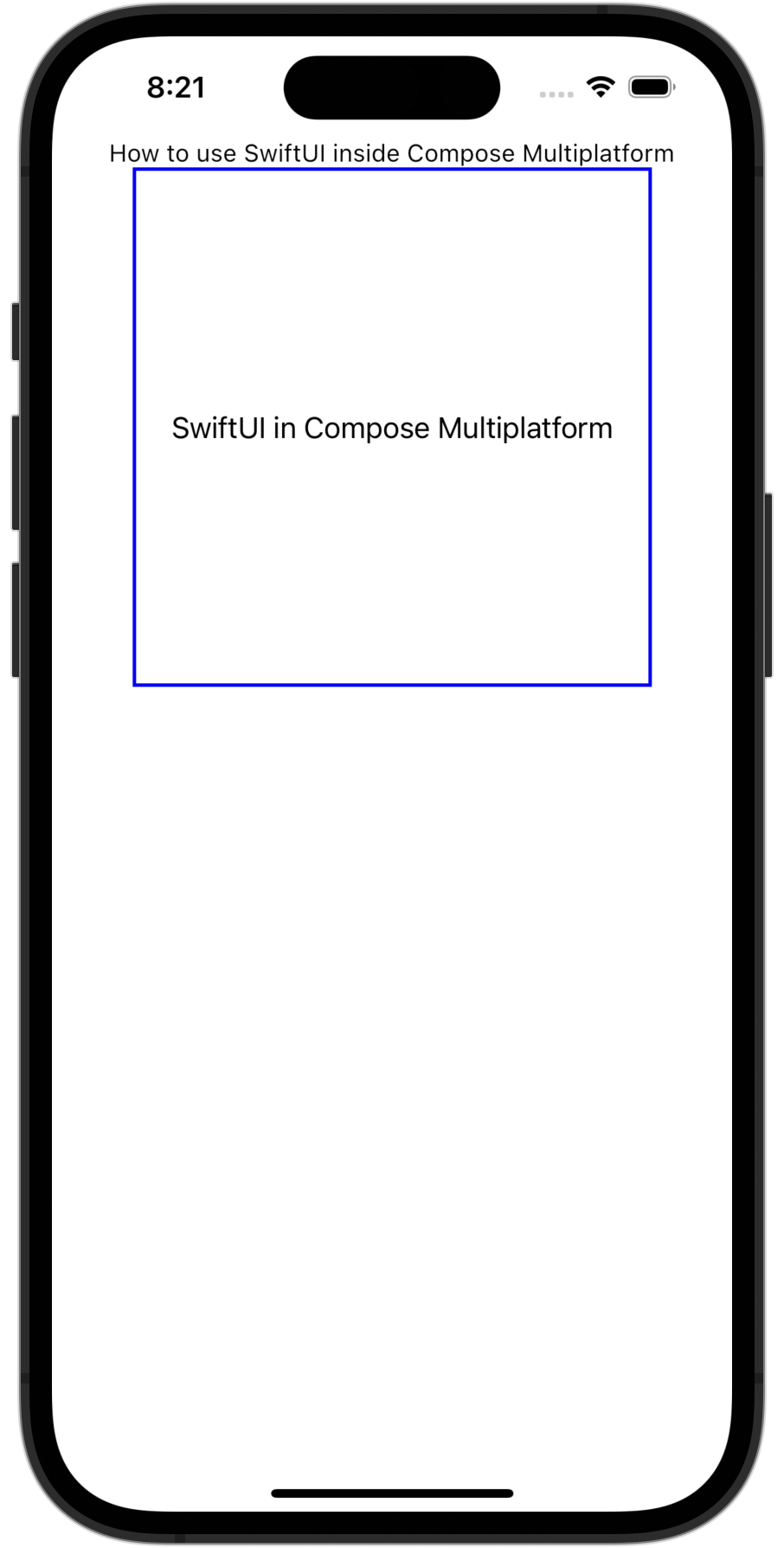
在 範例專案 中探索此範例的程式碼。
地圖檢視
您可以使用 SwiftUI 的 Map 組件在 Compose Multiplatform 中實作地圖檢視。這讓您的應用程式能夠顯示完全互動的 SwiftUI 地圖。
對於同一個 Kotlin 進入點函式,在 Swift 中,使用 UIHostingController 傳遞包裝 Map 檢視的 UIViewController:
import SwiftUI
import MapKit

Main_iosKt.ComposeEntryPointWithUIViewController(createUIViewController: {
    let region = Binding.constant(
        MKCoordinateRegion(
            center: CLLocationCoordinate2D(latitude: 37.7749, longitude: -122.4194),
            span: MKCoordinateSpan(latitudeDelta: 0.05, longitudeDelta: 0.05)
        )
    )

    let mapView = Map(coordinateRegion: region)
    return UIHostingController(rootView: mapView)
})
現在,讓我們看一個進階範例。這段程式碼在 SwiftUI 地圖中新增了自訂註解,並允許您從 Swift 更新檢視狀態:
import SwiftUI
import MapKit

struct AnnotatedMapView: View {
    // Manages map region state
    @State private var region = MKCoordinateRegion(
        center: CLLocationCoordinate2D(latitude: 51.5074, longitude: -0.1278),
        span: MKCoordinateSpan(latitudeDelta: 0.1, longitudeDelta: 0.1)
    )
    // Displays a map with a custom annotation
    var body: some View {
        Map(coordinateRegion: $region, annotationItems: [Landmark.example]) { landmark in
            MapMarker(coordinate: landmark.coordinate, tint: .blue)
        }
    }
}

struct Landmark: Identifiable {
    let id = UUID()
    let name: String
    let coordinate: CLLocationCoordinate2D

    static let example = Landmark(
        name: "Big Ben",
        coordinate: CLLocationCoordinate2D(latitude: 51.5007, longitude: -0.1246)
    )
}
接著,您可以將此帶有註解的地圖包裝在 UIHostingController 中,並傳遞給您的 Compose Multiplatform 程式碼:
Main_iosKt.ComposeEntryPointWithUIViewController(createUIViewController: {
    return UIHostingController(rootView: AnnotatedMapView())
})
AnnotatedMapView 執行下列任務:
- 定義一個 SwiftUI
Map檢視,並將其嵌入名為AnnotatedMapView的自訂檢視中。 - 使用
@State和MKCoordinateRegion管理地圖位置的內部狀態,允許 Compose Multiplatform 顯示一個互動式且感知狀態的地圖。 - 使用符合
Identifiable的靜態Landmark模型在地圖上顯示MapMarker,這是 SwiftUI 註解所必需的。 - 使用
annotationItems以宣告方式在地圖上放置自訂標記。 - 將 SwiftUI 組件包裝在
UIHostingController中,然後將其作為UIViewController傳遞給 Compose Multiplatform。
相機檢視
您可以使用 SwiftUI 和 UIKit 的 UIImagePickerController(包裝在與 SwiftUI 相容的組件中)在 Compose Multiplatform 中實作相機檢視。這讓您的應用程式能夠啟動系統相機並拍攝照片。
對於同一個 Kotlin 進入點函式,在 Swift 中,使用 UIImagePickerController 定義基本的 CameraView 並使用 UIHostingController 嵌入:
Main_iosKt.ComposeEntryPointWithUIViewController(createUIViewController: {
    return UIHostingController(rootView: CameraView { image in
        // Handle captured image here
    })
})
為了使其運作,請按如下方式定義 CameraView:
import SwiftUI
import UIKit

struct CameraView: UIViewControllerRepresentable {
    let imageHandler: (UIImage) -> Void
    @Environment(\.presentationMode) private var presentationMode

    init(imageHandler: @escaping (UIImage) -> Void) {
        self.imageHandler = imageHandler
    }

    func makeCoordinator() -> Coordinator {
        Coordinator(self)
    }

    func makeUIViewController(context: Context) -> UIImagePickerController {
        let picker = UIImagePickerController()
        picker.sourceType = .camera
        picker.delegate = context.coordinator
        return picker
    }

    func updateUIViewController(_ uiViewController: UIImagePickerController, context: Context) {}

    class Coordinator: NSObject, UINavigationControllerDelegate, UIImagePickerControllerDelegate {
        let parent: CameraView

        init(_ parent: CameraView) {
            self.parent = parent
        }

        func imagePickerController(_ picker: UIImagePickerController,
                                   didFinishPickingMediaWithInfo info: [UIImagePickerController.InfoKey : Any]) {
            if let image = info[.originalImage] as? UIImage {
                parent.imageHandler(image)
            }
            parent.presentationMode.wrappedValue.dismiss()
        }

        func imagePickerControllerDidCancel(_ picker: UIImagePickerController) {
            parent.presentationMode.wrappedValue.dismiss()
        }
    }
}
現在,讓我們看一個進階範例。這段程式碼呈現一個相機檢視,並在同一個 SwiftUI 檢視中顯示拍攝影像的縮圖:
import SwiftUI
import UIKit

struct CameraPreview: View {
    // Controls the camera sheet visibility
    @State private var showCamera = false
    // Stores the captured image
    @State private var capturedImage: UIImage?

    var body: some View {
        VStack {
            if let image = capturedImage {
                // Displays the captured image
                Image(uiImage: image)
                    .resizable()
                    .scaledToFit()
                    .frame(height: 200)
            } else {
                // Shows placeholder text when no image is captured
                Text("No image captured")
            }

            // Adds a button to open the camera
            Button("Open Camera") {
                showCamera = true
            }
            // Presents CameraView as a modal sheet
            .sheet(isPresented: $showCamera) {
                CameraView { image in
                    capturedImage = image
                }
            }
        }
    }
}
CameraPreview 檢視執行下列任務:
- 當使用者點擊按鈕時,在強制回應視窗
.sheet中呈現CameraView。 - 使用
@State屬性包裝器來存儲並顯示拍攝的影像。 - 嵌入 SwiftUI 原生的
Image檢視來預覽照片。 - 重複使用與之前相同基於
UIViewControllerRepresentable的CameraView,但將其更深層地整合到 SwiftUI 狀態系統中。
若要在真實裝置上進行測試,您需要將
NSCameraUsageDescription金鑰新增到應用程式的Info.plist檔案中。若沒有它,應用程式將在執行時崩潰。
網頁檢視
您可以透過將 UIKit 的 WKWebView 組件與 UIViewRepresentable 包裝在一起,在 Compose Multiplatform 中使用 SwiftUI 實作網頁檢視。這讓您可以顯示具有完整原生渲染的嵌入式網頁內容。
對於同一個 Kotlin 進入點函式,在 Swift 中,定義一個使用 UIHostingController 嵌入的基本 WebView:
Main_iosKt.ComposeEntryPointWithUIViewController(createUIViewController: {
    let url = URL(string: "https://www.jetbrains.com")!
    return UIHostingController(rootView: WebView(url: url))
})
現在,讓我們看一個進階範例。這段程式碼為網頁檢視新增了導覽追蹤和載入狀態顯示:
import SwiftUI
import UIKit
import WebKit

struct AdvancedWebView: UIViewRepresentable {
    let url: URL
    @Binding var isLoading: Bool
    @Binding var currentURL: String

    // Creates WKWebView with navigation delegate
    func makeUIView(context: Context) -> WKWebView {
        let webView = WKWebView()
        webView.navigationDelegate = context.coordinator
        webView.load(URLRequest(url: url))
        return webView
    }

    func updateUIView(_ uiView: WKWebView, context: Context) {}

    // Creates coordinator to handle web navigation events
    func makeCoordinator() -> Coordinator {
        Coordinator(isLoading: $isLoading, currentURL: $currentURL)
    }

    class Coordinator: NSObject, WKNavigationDelegate {
        @Binding var isLoading: Bool
        @Binding var currentURL: String

        init(isLoading: Binding<Bool>, currentURL: Binding<String>) {
            _isLoading = isLoading
            _currentURL = currentURL
        }

        func webView(_ webView: WKWebView, didStartProvisionalNavigation navigation: WKNavigation?) {
            isLoading = true
        }

        // Updates URL and indicates loading has completed
        func webView(_ webView: WKWebView, didFinish navigation: WKNavigation?) {
            isLoading = false
            currentURL = webView.url?.absoluteString ?? ""
        }
    }
}
在 SwiftUI 檢視中使用方式如下:
struct WebViewContainer: View {
    // Tracks loading state of web view
    @State private var isLoading = false
    // Tracks current URL displayed
    @State private var currentURL = ""

    var body: some View {
        VStack {
            // Displays loading indicator while loading
            if isLoading {
                ProgressView()
            }
            // Shows current URL
            Text("URL: \(currentURL)")
                .font(.caption)
                .lineLimit(1)
                .truncationMode(.middle)

            // Embeds the advanced web view
            AdvancedWebView(
                url: URL(string: "https://www.jetbrains.com")!,
                isLoading: $isLoading,
                currentURL: $currentURL
            )
        }
    }
}
AdvancedWebView 和 WebViewContainer 執行下列任務:
- 建立具有自訂導覽委派的
WKWebView,以追蹤載入進度和 URL 變更。 - 使用 SwiftUI 的
@State繫結來動態更新 UI 以回應導覽事件。 - 在頁面載入時顯示
ProgressView旋轉圖示。 - 使用
Text組件在檢視頂部顯示當前 URL。 - 使用
UIHostingController將此組件整合到您的 Compose UI 中。
後續步驟
您還可以探索 Compose Multiplatform 與 UIKit 架構整合 的方式。