
與 UIKit 架構整合
Compose Multiplatform 與 UIKit 架構具備互通性。您可以將 Compose Multiplatform 嵌入 UIKit 應用程式,也可以在 Compose Multiplatform 中嵌入原生 UIKit 組建。本頁面提供在 UIKit 應用程式中使用 Compose Multiplatform 以及在 Compose Multiplatform UI 中嵌入 UIKit 組建的範例。
若要了解 SwiftUI 的互通性,請參閱與 SwiftUI 架構整合文章。
在 UIKit 應用程式中使用 Compose Multiplatform
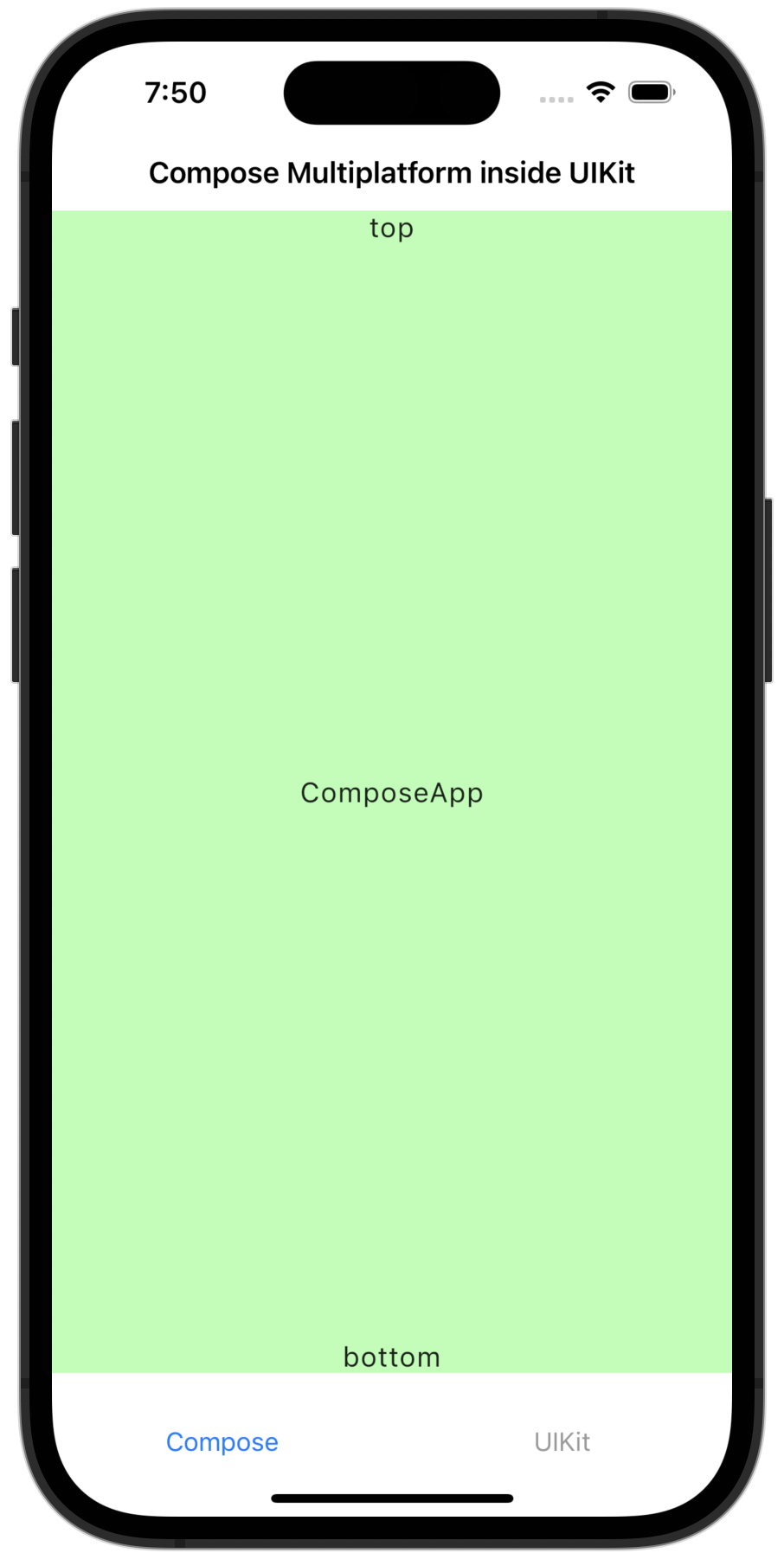
若要在 UIKit 應用程式中使用 Compose Multiplatform,請將您的 Compose Multiplatform 程式碼加入任何 容器視圖控制器 (container view controller)。此範例在 UITabBarController 類別中使用 Compose Multiplatform:
let composeViewController = Main_iosKt.ComposeOnly()
composeViewController.title = "Compose Multiplatform inside UIKit"

let anotherViewController = UIKitViewController()
anotherViewController.title = "UIKit"

// Set up the UITabBarController
let tabBarController = UITabBarController()
tabBarController.viewControllers = [
    // Wrap the created ViewControllers in a UINavigationController to set titles
    UINavigationController(rootViewController: composeViewController),
    UINavigationController(rootViewController: anotherViewController)
]
tabBarController.tabBar.items?[0].title = "Compose"
tabBarController.tabBar.items?[1].title = "UIKit"
透過這段程式碼,您的應用程式看起來應該如下所示:
Compose Multiplatform 渲染需要明確啟用高重新整理率:在您的應用程式
Info.plist檔案中加入CADisableMinimumFrameDurationOnPhone金鑰。若未加入,應用程式將在執行時崩潰。
在 範例專案中探索此程式碼。
在 Compose Multiplatform 中使用 UIKit
若要在 Compose Multiplatform 中使用 UIKit 元素,請將您要使用的 UIKit 元素加入來自 Compose Multiplatform 的 UIKitView。您可以純粹使用 Kotlin 編寫這段程式碼,也可以使用 Swift。
地圖檢視 (Map view)
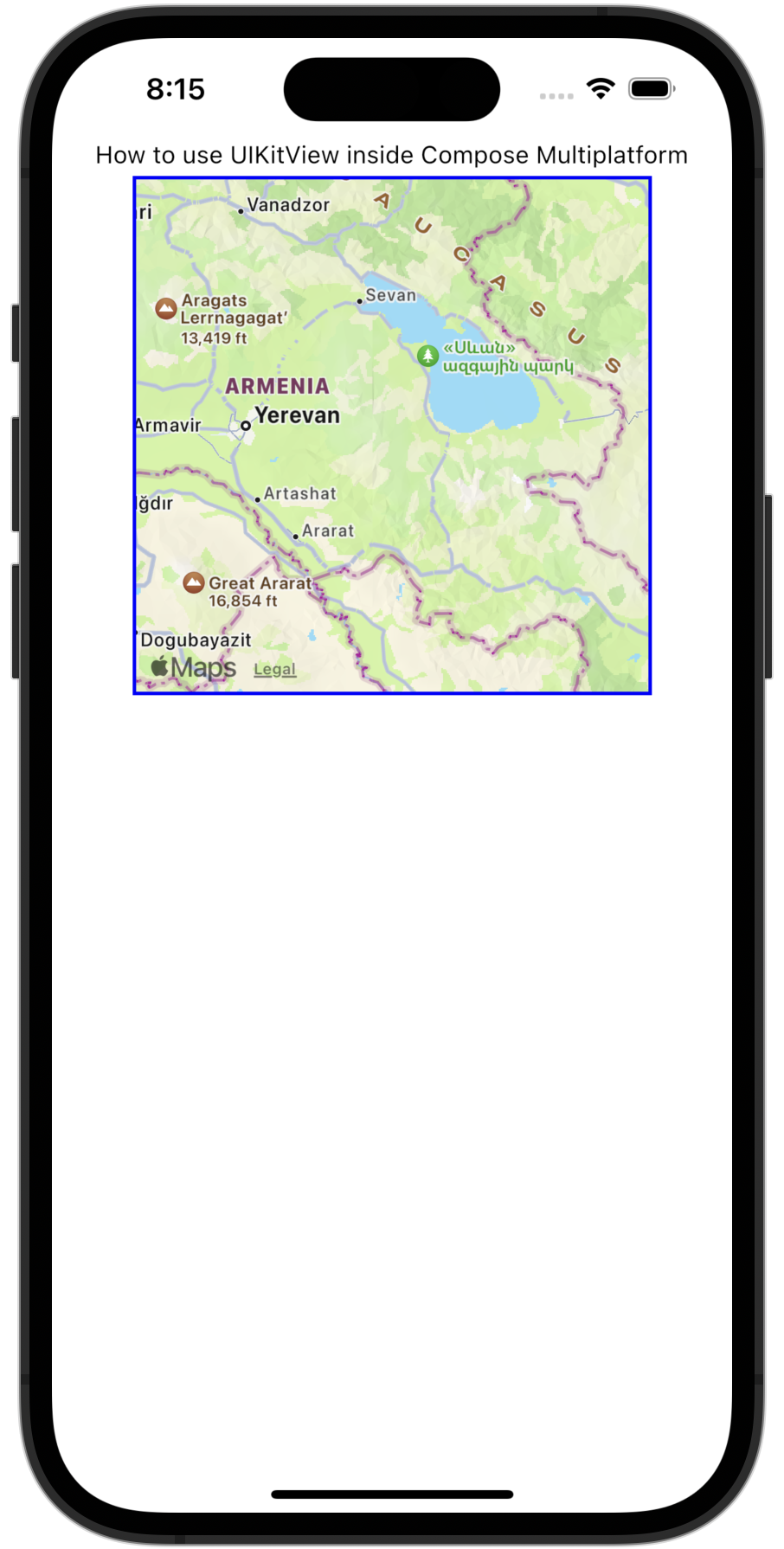
您可以使用 UIKit 的 MKMapView 組建在 Compose Multiplatform 中實作地圖檢視。使用 Compose Multiplatform 的 Modifier.size() 或 Modifier.fillMaxSize() 函式來設定組建大小:
UIKitView(
    factory = { MKMapView() },
    modifier = Modifier.size(300.dp),
)
透過這段程式碼,您的應用程式看起來應該如下所示:
現在,讓我們看一個進階範例。這段程式碼在 Compose Multiplatform 中封裝了 UIKit 的 UITextField:
@OptIn(ExperimentalForeignApi::class)
@Composable
fun UseUITextField(modifier: Modifier = Modifier) {
    // 保持 Compose 中的文字狀態
    var message by remember { mutableStateOf("Hello, World!") }

    UIKitView(
        factory = {
            // 建立一個與 Compose 狀態整合的 UITextField
            val textField = object : UITextField(CGRectMake(0.0, 0.0, 0.0, 0.0)) {
                @ObjCAction
                fun editingChanged() {
                    // 當 UITextField 中的文字變更時更新 Compose 狀態
                    message = text ?: ""
                }
            }
            // 為 UITextField 內的文字變更加入接聽程式
            textField.addTarget(
                target = textField,
                action = NSSelectorFromString(textField::editingChanged.name),
                forControlEvents = UIControlEventEditingChanged
            )
            textField
        },
        modifier = modifier.fillMaxWidth().height(30.dp),
        update = { textField ->
            // 從 Compose 狀態更新 UITextField 文字
            textField.text = message
        }
    )
}factory參數包含editingChanged()函式與textField.addTarget()接聽程式,用以偵測UITextField的任何變更。editingChanged()函式標記有@ObjCAction註解,以便與 Objective-C 程式碼互通。addTarget()函式的action參數傳遞了editingChanged()函式的名稱,並在回應UIControlEventEditingChanged事件時觸發。- 當可觀察的
message狀態值改變時,會呼叫UIKitView()的update參數。 - 該函式會更新
UITextField的text屬性,讓使用者看到更新後的值。
在我們的 範例專案中探索此範例的程式碼。
相機檢視 (Camera view)
您可以使用 UIKit 的 AVCaptureSession 與 AVCaptureVideoPreviewLayer 組建在 Compose Multiplatform 中實作相機檢視。
這讓您的應用程式能夠存取裝置的相機並顯示即時預覽。
以下是如何實作基礎相機檢視的範例:
UIKitView(
    factory = {
        val session = AVCaptureSession().apply {
            val device = AVCaptureDevice.defaultDeviceWithMediaType(AVMediaTypeVideo)!!
            val input = AVCaptureDeviceInput.deviceInputWithDevice(device, null)!!
            addInput(input)
        }
        val previewLayer = AVCaptureVideoPreviewLayer(session)
        session.startRunning()

        object : UIView() {
            override fun layoutSubviews() {
                super.layoutSubviews()
                previewLayer.frame = bounds
            }
        }.apply {
            layer.addSublayer(previewLayer)
        }
    },
    modifier = Modifier.size(300.dp)
)
現在,讓我們看一個進階範例。這段程式碼會擷取相片、附加 GPS 元資料,並使用原生 UIView 顯示即時預覽:
@OptIn(ExperimentalForeignApi::class)
@Composable
fun RealDeviceCamera(
    camera: AVCaptureDevice,
    onCapture: (picture: PictureData.Camera, image: PlatformStorableImage) -> Unit
) {
    // 初始化 AVCapturePhotoOutput 用於相片擷取
    val capturePhotoOutput = remember { AVCapturePhotoOutput() }
    // ...
    // 定義一個委派來擷取回呼:處理影像資料、附加 GPS、設定 onCapture
    val photoCaptureDelegate = remember {
        object : NSObject(), AVCapturePhotoCaptureDelegateProtocol {
            override fun captureOutput(
                output: AVCapturePhotoOutput,
                didFinishProcessingPhoto: AVCapturePhoto,
                error: NSError?
            ) {
                val photoData = didFinishProcessingPhoto.fileDataRepresentation()
                if (photoData != null) {
                    val gps = locationManager.location?.toGps() ?: GpsPosition(0.0, 0.0)
                    val uiImage = UIImage(photoData)
                    onCapture(
                        createCameraPictureData(
                            name = nameAndDescription.name,
                            description = nameAndDescription.description,
                            gps = gps
                        ),
                        IosStorableImage(uiImage)
                    )
                }
                capturePhotoStarted = false
            }
        }
    }
    // ...
    // 設定用於相片擷取的 AVCaptureSession
    val captureSession: AVCaptureSession = remember {
        AVCaptureSession().also { captureSession ->
            captureSession.sessionPreset = AVCaptureSessionPresetPhoto
            val captureDeviceInput: AVCaptureDeviceInput =
                deviceInputWithDevice(device = camera, error = null)!!
            captureSession.addInput(captureDeviceInput)
            captureSession.addOutput(capturePhotoOutput)
        }
    }
    // 設定用於即時相機預覽的 AVCaptureVideoPreviewLayer
    val cameraPreviewLayer = remember {
        AVCaptureVideoPreviewLayer(session = captureSession)
    }
    // ...
    // 建立一個帶有原生相機預覽層的原生 UIView
    UIKitView(
        modifier = Modifier.fillMaxSize().background(Color.Black),
        factory = {
            val cameraContainer = object: UIView(frame = CGRectZero.readValue()) {
                override fun layoutSubviews() {
                    CATransaction.begin()
                    CATransaction.setValue(true, kCATransactionDisableActions)
                    layer.setFrame(frame)
                    cameraPreviewLayer.setFrame(frame)
                    CATransaction.commit()
                }
            }
            cameraContainer.layer.addSublayer(cameraPreviewLayer)
            cameraPreviewLayer.videoGravity = AVLayerVideoGravityResizeAspectFill
            captureSession.startRunning()
            cameraContainer
        },
    )
    // ...
    // 建立一個 Compose 按鈕,在按下時執行 capturePhotoWithSettings 回呼
    CircularButton(
        imageVector = IconPhotoCamera,
        modifier = Modifier.align(Alignment.BottomCenter).padding(36.dp),
        enabled = !capturePhotoStarted,
    ) {
        capturePhotoStarted = true
        val photoSettings = AVCapturePhotoSettings.photoSettingsWithFormat(
            format = mapOf(AVVideoCodecKey to AVVideoCodecTypeJPEG)
        )
        if (camera.position == AVCaptureDevicePositionFront) {
            capturePhotoOutput.connectionWithMediaType(AVMediaTypeVideo)
                ?.automaticallyAdjustsVideoMirroring = false
            capturePhotoOutput.connectionWithMediaType(AVMediaTypeVideo)
                ?.videoMirrored = true
        }
        capturePhotoOutput.capturePhotoWithSettings(
            settings = photoSettings,
            delegate = photoCaptureDelegate
        )
    }
}
"}
RealDeviceCamera 可組合項執行以下任務:
- 使用
AVCaptureSession與AVCaptureVideoPreviewLayer設定原生相機預覽。 - 建立一個承載自訂
UIView子類別的UIKitView,該子類別管理配置更新並嵌入預覽層。 - 初始化
AVCapturePhotoOutput並配置一個委派來處理相片擷取。 - 使用
CLLocationManager(透過locationManager) 在擷取瞬間獲取 GPS 座標。 - 將擷取的影像轉換為
UIImage,將其封裝為PlatformStorableImage,並透過onCapture提供名稱、描述與 GPS 位置等元資料。 - 顯示一個用於觸發擷取的圓形可組合按鈕。
- 在使用前置鏡頭時套用鏡像設定,以符合自然的自拍行為。
- 在
layoutSubviews()中使用CATransaction動態更新預覽配置,以避免動畫效果。
若要在實體裝置上測試,您需要在應用程式的
Info.plist檔案中加入NSCameraUsageDescription金鑰。若未加入,應用程式將在執行時崩潰。
在 ImageViewer 範例專案中探索此範例的完整程式碼。
網頁檢視 (Web view)
您可以使用 UIKit 的 WKWebView 組建在 Compose Multiplatform 中實作網頁檢視。這讓您的應用程式能夠在 UI 中顯示網頁內容並與其互動。使用 Compose Multiplatform 的 Modifier.size() 或 Modifier.fillMaxSize() 函式來設定組建大小:
UIKitView(
    factory = {
        WKWebView().apply {
            loadRequest(NSURLRequest(URL = NSURL(string = "https://www.jetbrains.com")))
        }
    },
    modifier = Modifier.size(300.dp)
)
現在,讓我們看一個進階範例。這段程式碼會為網頁檢視配置導覽委派,並允許 Kotlin 與 JavaScript 之間進行通訊:
@Composable
fun WebViewWithDelegate(
    modifier: Modifier = Modifier,
    initialUrl: String = "https://www.jetbrains.com",
    onNavigationChange: (String) -> Unit = {}
) {
    // 建立一個委派來接聽導覽事件
    val delegate = remember {
        object : NSObject(), WKNavigationDelegateProtocol {
            override fun webView(
                webView: WKWebView,
                didFinishNavigation: WKNavigation?
            ) {
                // 在導覽完成後更新目前的 URL
                onNavigationChange(webView.URL?.absoluteString ?: "")
            }
        }
    }
    UIKitView(
        modifier = modifier,
        factory = {
            // 具現化 WKWebView 並設定其委派
            val webView = WKWebView().apply {
                navigationDelegate = delegate
                loadRequest(NSURLRequest(uRL = NSURL(string = initialUrl)))
            }
            webView
        },
        update = { webView ->
            // 如果 URL 變更,則重新載入網頁
            if (webView.URL?.absoluteString != initialUrl) {
                webView.loadRequest(NSURLRequest(uRL = NSURL(string = initialUrl)))
            }
        }
    )
}
WebViewWithDelegate 可組合項執行以下任務:
- 建立一個實作
WKNavigationDelegateProtocol介面的穩定委派物件。此物件透過 Compose 的remember在重新組合之間保持。 - 具現化
WKWebView,使用UIKitView嵌入它,並透過指派記憶的委派來進行配置。 - 載入由
initialUrl參數提供的初始網頁。 - 透過委派觀察導覽變更,並透過
onNavigationChange回呼傳遞目前 URL。 - 使用
update參數來觀察請求 URL 的變更,並據此重新載入網頁。
下一步
您也可以探索 Compose Multiplatform 與 SwiftUI 架構整合的方式。